An AI situation report
on the dashboard you already have.
Inno AI Report adds an AI Analysis tab to any Splunk dashboard. Press Analyze and the panel results on screen go to your Splunk AI Toolkit connection — you get a report with a status grade, ranked causes with their evidence, recommended actions and the team to contact.
Free on Splunkbase · one-button setup wizard · no dashboard rewriting · your own LLM · nothing sent to us
Get it on Splunkbase Read the user guide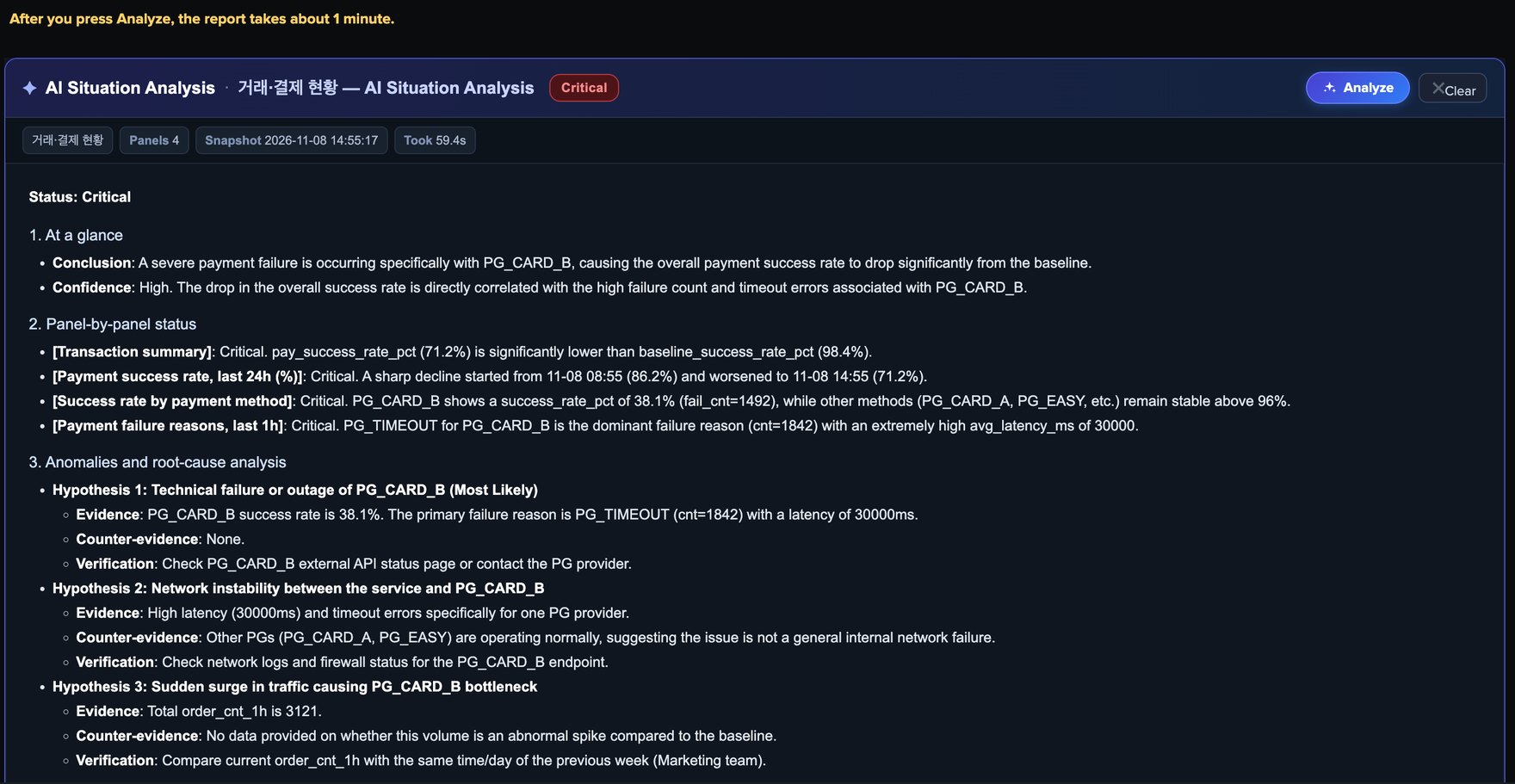
What it does
One button adds the tab
Pick an app and a dashboard in the wizard, choose the business domain and the report language, press one button. Dashboard Studio gets a tab; Classic dashboards get a panel at the bottom.
No need to know the queries
Panel results are summarised into field=value lines without depending on particular field names, so the app attaches to dashboards it has never seen. Every panel on screen is sent in one go.
Your screen stays as it is
Existing panels are not touched. The dashboard is backed up automatically before the tab is added, and one button in the wizard restores it.
A report you can check
Every hypothesis comes with evidence, counter-evidence and what to verify, citing the panel values. The data sent to the model can be opened from the card.
How it works
The app writes a search into the dashboard that summarises the panel results and calls the
Splunk AI Toolkit | ai command. The model is whichever one your AI Toolkit
connection points to — a hosted model or one on your own hardware. The app ships no model and
no endpoint, sends no telemetry, and calls the model only when someone presses the
button, so a dashboard carrying the tab costs nothing until it is used.
Six business domains — network, security, infrastructure, application, business and general — change the analyst role, what is cited as evidence and which team each action goes to. Reports are written in Korean, English or Japanese. The prompt itself can be adjusted per dashboard in the wizard, or for every dashboard through search macros.
Generated analysis can be wrong or incomplete. It is meant to support operational decisions, not to replace them.
User guide
Install, first-time setup, adding the tab, running the analysis, reading the report, business domains, changing the prompt, revert and troubleshooting.
Requirements
- Splunk Enterprise — tested on 10.2.2 and 10.4.0.
- Splunk AI Toolkit with at least one working LLM connection, usable by the person pressing the button.
- A role that can edit the target dashboards and write to the app's backup KV store collection.
Licence and support
Free to use, including in production. Redistribution, resale and bundling are not permitted — see the licence. Questions and problem reports: [email protected].
Want to ask the follow-up question in plain language? See Inno AI Chat.